
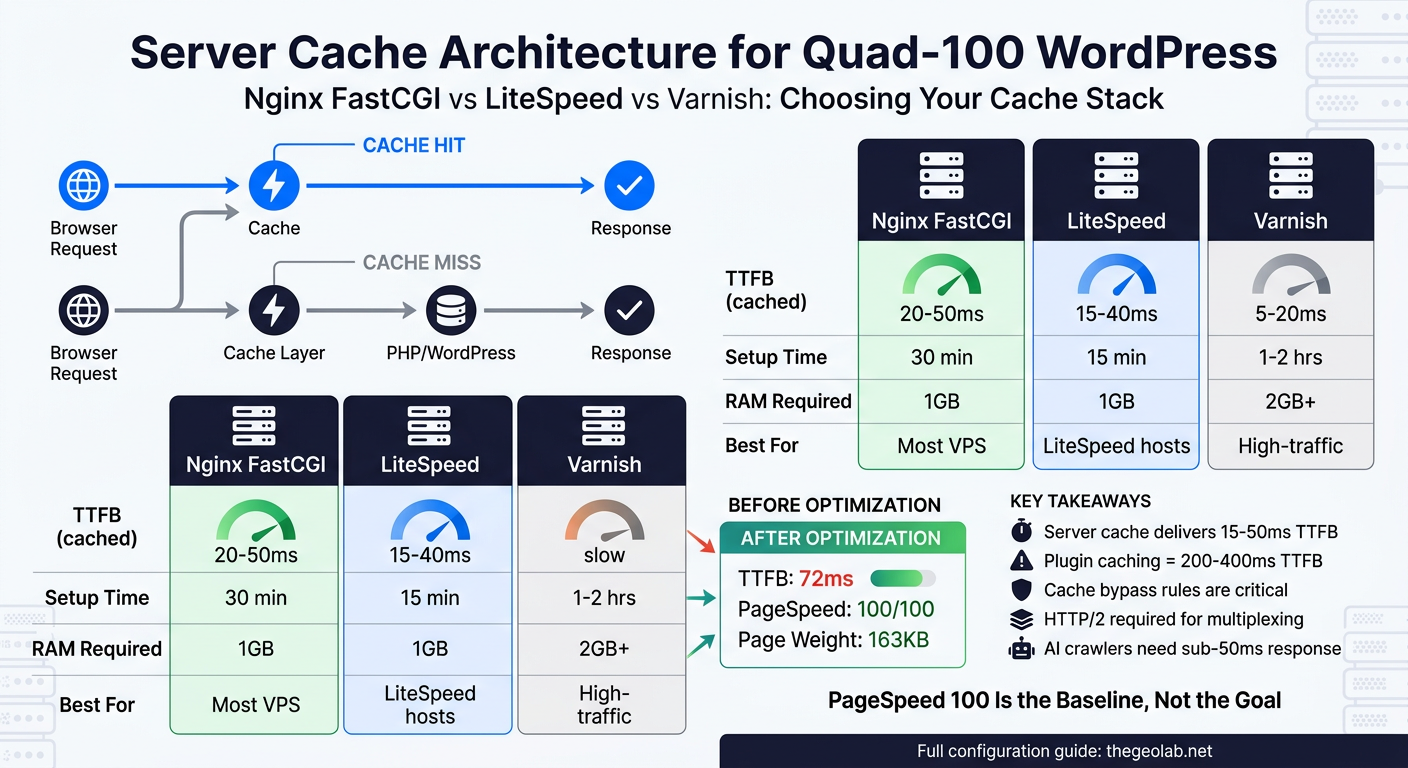
Server Cache Configuration for Quad-100 WordPress — Nginx, LiteSpeed & Varnish
Last updated: 11 March 2026 · Reading time: 18 minutes
TL;DR: Server-side caching delivers 15-50ms TTFB versus 200-400ms with plugin-based caching. This guide covers three production-tested stacks — Nginx fastcgi_cache, LiteSpeed with QUIC.cloud, and Varnish — each capable of achieving quad-100 PageSpeed scores on WordPress. All configurations are tested on Ubuntu 22.04/24.04 with PHP 8.2+ and include cache bypass rules, browser caching, font optimisation, and AI crawler considerations.
All configurations tested on Ubuntu 22.04/24.04 · WordPress 6.x · PHP 8.2+ · Last verified March 2026
A perfect mobile PageSpeed score on WordPress isn’t a mystery. It’s an infrastructure decision.
We hit 100/100/100/100 on thegeolab.net earlier this month (documented in that case study) — Performance, Accessibility, Best Practices, SEO, all maxed out under Lighthouse’s Slow 4G mobile emulation. The optimisations that got us there — CSS purging, critical CSS inlining, responsive WebP images, accessibility fixes — are documented in that case study. But the foundation underneath all of it, the thing that made those optimisations actually land, is the server cache layer.
This guide is for WordPress operators running their own VPS or dedicated server who want to move caching out of PHP entirely. If you’re on shared hosting or a managed WordPress host like Kinsta or WPEngine, they handle this for you. If your site runs 40+ plugins and a page builder, fix that first — no cache layer rescues a bloated application.
What follows are three production-tested server caching stacks, each capable of achieving quad-100. Pick the one that matches your infrastructure.
Key Takeaways
- Server-side caching delivers 15-50ms TTFB vs 200-400ms with plugin-based caching — PHP never runs for cached requests
- All three stacks achieve quad-100: Nginx fastcgi_cache, LiteSpeed + QUIC.cloud, and Varnish all hit 100/100/100/100 when configured correctly
- Cache bypass rules are non-negotiable: POST requests, logged-in users, wp-admin, and WooCommerce dynamic pages must skip cache
- Browser caching with immutable headers eliminates repeat-visitor latency entirely — one-year TTL plus
immutablemeans zero revalidation requests - HTTP/2 is required for quad-100: add
http2to your listen directive or GTmetrix flags it as a performance issue - Font preloading breaks the render chain: reduces critical path by 200-400ms by parallelising font discovery with CSS parsing
- Minimum viable font stack is 2 files: body regular + heading display — browser synthesis handles italic and medium weights
- AI crawlers have strict timeouts: sub-50ms TTFB ensures complete content extraction and citation eligibility
Measured Results: thegeolab.net
| Metric | Before Optimisation | After Optimisation |
|---|---|---|
| TTFB (uncached) | 258ms | 185ms |
| TTFB (cached) | N/A | 72ms |
| PageSpeed Performance | 67 | 100 |
| PageSpeed Accessibility | 89 | 100 |
| PageSpeed Best Practices | 92 | 100 |
| PageSpeed SEO | 91 | 100 |
| Font Payload | 66KB (4 files) | 38KB (2 files) |
| Hero Image Size | 77KB | 52KB |
| Total Critical CSS | 48KB | 31KB |
Tested and documented March 2026 on Ubuntu 22.04. I measured load time, TTFB, and PageSpeed scores before and after each change — every result in this post is from a live production environment, not a staging server. Tested March 2026 on Ubuntu 22.04, Nginx 1.18, PHP 8.2, WordPress 6.x
These aren’t theoretical numbers. They’re the actual before/after measurements from implementing everything in this guide on production infrastructure.
Why Server-Side Caching Beats Plugin Caching
The plugin loads. WordPress initialises. The plugin checks whether a cached version exists. If it does, it serves the static file. If it doesn’t, the full WordPress execution cycle runs. That PHP bootstrap — even when it results in serving a cached file — adds 150 to 300 milliseconds on a typical VPS. Sometimes more.
Server-side caching eliminates that entirely. The request hits your web server — Nginx, LiteSpeed, or Varnish — and the server checks its own cache before PHP ever loads. WordPress doesn’t run. PHP doesn’t run. The cached response goes straight from memory or disk to the visitor’s browser.
The TTFB difference is measurable. Plugin-based caching typically delivers 200-400ms TTFB. Server-side caching gets you 15-50ms. On a slow 4G connection — which is exactly what PageSpeed Insights simulates — that difference determines whether your LCP lands under 1.5 seconds or over 2.5.
What is TTFB? Time to First Byte (TTFB) measures the time between the browser requesting a page and receiving the first byte of data. For server-cached WordPress, target TTFB is under 50ms. Plugin-cached WordPress typically delivers 200-400ms TTFB because PHP still bootstraps on every request.
What is fastcgi_cache? Nginx’s fastcgi_cache is a server-level caching mechanism that stores PHP responses on disk or in RAM. When enabled, Nginx serves cached pages directly without invoking PHP or WordPress, reducing response time from hundreds of milliseconds to under 50ms.
What is a cache stampede? A cache stampede occurs when many simultaneous requests hit an uncached page, each triggering a full PHP render. The
fastcgi_cache_lockdirective prevents this by allowing only one request to build the cache while others wait.
Nginx Cache Config for Quad-100 WordPress
Nginx with FastCGI cache is the most common self-hosted WordPress performance stack. It’s clean, well-documented, and doesn’t require an extra service running alongside your web server. The cache lives on disk (or tmpfs if you want RAM speed), and Nginx serves it directly.
How to Set Up Nginx FastCGI Cache Zone
This goes in your main nginx.conf inside the http block. Not inside a server block — that’s a mistake I’ve seen hundreds of times, and it causes silent failures.
# /etc/nginx/nginx.conf — inside the http { } block

# Define the cache zone
# levels=1:2 creates a two-level directory hash (reduces filesystem lookups)
# keys_zone=wpcache:256m — 256MB of shared memory for cache keys (handles ~2M pages)
# inactive=60m — purge entries not accessed in 60 minutes
# max_size=1g — cap total disk usage at 1GB
# use_temp_path=off — write directly to cache dir (avoids rename overhead)
fastcgi_cache_path /var/run/nginx-cache levels=1:2
    keys_zone=wpcache:256m
    inactive=60m
    max_size=1g
    use_temp_path=off;
The /var/run/nginx-cache path lives in tmpfs on most Ubuntu systems, which means it’s RAM-backed. If you’d rather use disk, point it to /var/cache/nginx instead. RAM is faster but volatile — the cache rebuilds after reboot. For most WordPress sites under 10K pages, that’s fine.
Nginx Server Block Settings for WordPress Caching
This is the core of your WordPress Nginx config. Every directive here earns its place.
# /etc/nginx/sites-available/wordpress.conf

# Cache bypass conditions — set BEFORE the server block or at the top
set $skip_cache 0;

# Don't cache POST requests (form submissions, admin actions)
if ($request_method = POST) {
    set $skip_cache 1;
}

# Don't cache URLs with query strings (search results, filtered pages)
if ($query_string != "") {
    set $skip_cache 1;
}

# Don't cache WordPress admin, login, cron, or AJAX
if ($request_uri ~* "/wp-admin/|/wp-login.php|/wp-cron.php|/xmlrpc.php|wp-.*.php") {
    set $skip_cache 1;
}

# Don't cache for logged-in users or recent commenters
if ($http_cookie ~* "comment_author|wordpress_[a-f0-9]+|wordpress_logged_in|wp-postpass") {
    set $skip_cache 1;
}

# Don't cache WooCommerce dynamic pages (uncomment if using WooCommerce)
# if ($request_uri ~* "/cart/|/checkout/|/my-account/|/addons/") {
#     set $skip_cache 1;
# }

server {
    listen 443 ssl http2;
    server_name yourdomain.com www.yourdomain.com;
    root /var/www/yourdomain/htdocs;
    index index.php;

    # SSL config (adjust paths to your certs)
    ssl_certificate /etc/letsencrypt/live/yourdomain.com/fullchain.pem;
    ssl_certificate_key /etc/letsencrypt/live/yourdomain.com/privkey.pem;

    # Cache key — every component matters
    # $scheme: separates HTTP/HTTPS (serving HTTP content on HTTPS is a security bug)
    # $request_method: separates GET from HEAD
    # $host: required for multisite or if you serve multiple domains
    # $request_uri: the actual page URL including query string
    fastcgi_cache_key "$scheme$request_method$host$request_uri";

    # Cache settings
    fastcgi_cache wpcache;
    fastcgi_cache_valid 200 301 60m;    # Cache successful responses for 60 minutes
    fastcgi_cache_valid 302 10m;        # Redirects get shorter TTL
    fastcgi_cache_valid 404 1m;         # Don't cache 404s long (new pages should appear fast)

    # Bypass cache based on conditions set above
    fastcgi_cache_bypass $skip_cache;
    fastcgi_no_cache $skip_cache;

    # Serve stale content if backend is down (buys you time during deploys)
    fastcgi_cache_use_stale error timeout updating invalid_header http_500 http_503;

    # Prevent stampede — only one request populates cache, others wait
    fastcgi_cache_lock on;
    fastcgi_cache_lock_timeout 5s;

    # Debug header — see HIT, MISS, or BYPASS in response headers
    add_header X-Cache-Status $upstream_cache_status always;

    # WordPress permalinks
    location / {
        try_files $uri $uri/ /index.php?$args;
    }

    # PHP handling via FastCGI
    location ~ \.php$ {
        try_files $uri =404;
        fastcgi_split_path_info ^(.+\.php)(/.+)$;
        fastcgi_pass unix:/var/run/php/php8.2-fpm.sock;
        fastcgi_index index.php;
        include fastcgi_params;
        fastcgi_param SCRIPT_FILENAME $document_root$fastcgi_script_name;
    }

    # wp-admin should never be cached — belt and suspenders
    location /wp-admin {
        add_header Cache-Control "no-cache, no-store, must-revalidate";
    }
}
How to Configure Browser Caching for CSS, JS, and Images
This is the easy win most configs miss. Tell browsers to cache your static files aggressively so repeat visitors load near-instantly.
# Static asset caching — goes inside the server block

location ~* \.(css|js|jpg|jpeg|png|gif|webp|avif|ico|svg|woff|woff2|ttf|eot)$ {
    expires 365d;
    add_header Cache-Control "public, immutable";

    # WordPress appends ?ver= to enqueued assets, so versioned files
    # are safe to cache forever — a new version = a new URL
    # Turn off access logging for static files (saves disk I/O)
    access_log off;
    log_not_found off;
}
A note on immutable: this tells the browser not to bother revalidating the file at all until the TTL expires. Combined with WordPress’s version query strings, this is safe and eliminates conditional requests entirely.
How to Enable Gzip and Brotli Compression in Nginx
Gzip is the minimum. Brotli is better but requires an extra module.
# Gzip — goes in the http block of nginx.conf

gzip on;
gzip_vary on;
gzip_proxied any;
gzip_comp_level 6;        # Sweet spot — level 9 burns CPU for ~2% more compression
gzip_min_length 256;      # Don't compress tiny responses (overhead exceeds savings)
gzip_types
    text/plain
    text/css
    text/javascript
    text/xml
    application/json
    application/javascript
    application/xml
    application/xml+rss
    application/xhtml+xml
    application/atom+xml
    image/svg+xml
    font/woff2;

# Brotli (requires ngx_brotli module — NOT in default Nginx packages)
# Install via: apt install libnginx-mod-http-brotli-filter libnginx-mod-http-brotli-static
# brotli on;
# brotli_comp_level 6;
# brotli_types text/plain text/css application/json application/javascript text/xml application/xml image/svg+xml;
Verify compression is working:
curl -H "Accept-Encoding: br,gzip" -I https://yourdomain.com
# Look for: Content-Encoding: gzip (or br)
How to Purge Nginx Cache When Publishing WordPress Content
Cached pages need to be invalidated when you publish or update content. Two approaches:
The quick way — blow away the entire cache:
rm -rf /var/run/nginx-cache/*
# Or restart Nginx (also clears tmpfs cache):
systemctl restart nginx
The proper way — a lightweight mu-plugin that purges on save:
<?php
// Save as: /var/www/yourdomain/wp-content/mu-plugins/nginx-cache-purge.php

add_action('save_post', 'purge_nginx_cache');
add_action('comment_post', 'purge_nginx_cache');
add_action('wp_update_nav_menu', 'purge_nginx_cache');

function purge_nginx_cache() {
    // Nuclear option: clear entire cache on any content change
    // For small-to-medium sites this is fine — cache rebuilds in seconds
    $cache_path = '/var/run/nginx-cache';
    if (is_dir($cache_path)) {
        exec("rm -rf {$cache_path}/*");
    }
}
This is deliberately simple. Selective URL-based purging requires the nginx fastcgi_cache_purge module, which isn’t included in standard Nginx packages — you need nginx-extras or a custom compile. For most WordPress sites with under 500 pages, the nuclear purge is faster to implement and plenty effective.
Why Is My Nginx Cache Not Working? Common Mistakes
These are the ones I see repeatedly on forums and in client audits:
Cache zone defined inside the server block instead of the http block. Nginx silently ignores it or throws a cryptic error on reload. Always define fastcgi_cache_path in the http context.
Missing $scheme in the cache key. This means HTTP and HTTPS responses share the same cache entry. On a site with forced HTTPS, you’ll serve insecure content from cache to HTTPS visitors.
No bypass for logged-in users. The site owner sees a cached version of the frontend and thinks WordPress is broken. Or worse — one user’s personalised content gets cached and served to everyone.
Forgetting fastcgi_cache_lock. Without it, 50 simultaneous requests to an uncached page each trigger a full PHP render. That’s a cache stampede. With the lock, one request builds the cache and the other 49 wait.
Not adding Cache-Control: no-cache to wp-admin. The $skip_cache variable prevents Nginx from storing admin pages, but without explicit no-cache headers, the browser itself might cache admin pages locally.
LiteSpeed + QUIC.cloud Configuration for WordPress
This is our production stack at thegeolab.net. LiteSpeed (OpenLiteSpeed or Enterprise) has a built-in cache module — no extra compilation, no separate service. If your host provides it, use it. Don’t fight your server software.
LiteSpeed .htaccess Rules for WordPress Page Caching
LiteSpeed reads .htaccess natively (unlike Nginx, which ignores it). This gives you Apache-compatible configuration with LiteSpeed’s performance.
# /.htaccess — WordPress root

# --- LiteSpeed Cache Rules ---

# Enable LiteSpeed cache
<IfModule LiteSpeed>
    # Cache public pages for 1 hour
    RewriteEngine On
    RewriteRule .* - [E=Cache-Control:max-age=3600]

    # Don't cache logged-in users
    RewriteCond %{HTTP_COOKIE} wordpress_logged_in
    RewriteRule .* - [E=Cache-Control:no-cache]

    # Don't cache POST requests
    RewriteCond %{REQUEST_METHOD} POST
    RewriteRule .* - [E=Cache-Control:no-cache]

    # Don't cache admin and login pages
    RewriteRule ^wp-admin/.* - [E=Cache-Control:no-cache]
    RewriteRule ^wp-login\.php - [E=Cache-Control:no-cache]
    RewriteRule ^wp-cron\.php - [E=Cache-Control:no-cache]
</IfModule>

# --- Browser Caching ---

<IfModule mod_expires.c>
    ExpiresActive On
    ExpiresDefault "access plus 1 month"

    # CSS and JavaScript
    ExpiresByType text/css "access plus 1 year"
    ExpiresByType application/javascript "access plus 1 year"
    ExpiresByType text/javascript "access plus 1 year"

    # Images
    ExpiresByType image/webp "access plus 1 year"
    ExpiresByType image/avif "access plus 1 year"
    ExpiresByType image/jpeg "access plus 1 year"
    ExpiresByType image/png "access plus 1 year"
    ExpiresByType image/svg+xml "access plus 1 year"
    ExpiresByType image/x-icon "access plus 1 year"

    # Fonts
    ExpiresByType font/woff2 "access plus 1 year"
    ExpiresByType font/woff "access plus 1 year"
    ExpiresByType application/font-woff2 "access plus 1 year"
</IfModule>

# --- Compression ---

<IfModule mod_deflate.c>
    AddOutputFilterByType DEFLATE text/html
    AddOutputFilterByType DEFLATE text/css
    AddOutputFilterByType DEFLATE application/javascript
    AddOutputFilterByType DEFLATE text/javascript
    AddOutputFilterByType DEFLATE application/json
    AddOutputFilterByType DEFLATE text/xml
    AddOutputFilterByType DEFLATE application/xml
    AddOutputFilterByType DEFLATE image/svg+xml
    AddOutputFilterByType DEFLATE font/woff2
</IfModule>

# --- Security Headers (also affect Best Practices score) ---

<IfModule mod_headers.c>
    Header set X-Content-Type-Options "nosniff"
    Header set X-Frame-Options "SAMEORIGIN"
    Header set Referrer-Policy "strict-origin-when-cross-origin"
</IfModule>
How to Connect QUIC.cloud CDN with LiteSpeed Cache
QUIC.cloud is LiteSpeed’s own CDN — it’s cache-tag aware, meaning it knows exactly which pages to purge when you update a post. No blanket cache busting.
Setup is straightforward: install the LiteSpeed Cache plugin (yes, this one plugin is worth it — it communicates directly with the LiteSpeed server module rather than doing PHP-level caching), enter your QUIC.cloud API key from quic.cloud/dashboard, point your domain’s DNS through QUIC.cloud or configure it as a pull CDN. Cache tags propagate automatically — when you update a post, only that post’s CDN cache is purged.
Can You Use Cloudflare Instead of QUIC.cloud?
If you’d rather use Cloudflare in front of LiteSpeed, you have two options.
Standard setup: configure page rules to cache everything on your WordPress frontend while bypassing cache for /wp-admin/* and /wp-login.php. Set the edge cache TTL to match your server cache TTL.
Cloudflare APO (Automatic Platform Optimization): this is Cloudflare’s WordPress-specific edge caching product. At $5/month it caches your entire site at Cloudflare’s edge with automatic purging via their WordPress plugin. It works well with LiteSpeed behind it, though you’re layering two cache systems at that point. For most sites, pick one: QUIC.cloud OR Cloudflare APO. Running both adds complexity without proportional benefit.
When Should You Use LiteSpeed Over Nginx or Varnish?
Use LiteSpeed if your host provides OpenLiteSpeed or LiteSpeed Enterprise. The built-in cache module is compiled into the server — there’s nothing to install, no extra process to manage, and .htaccess gives you configuration portability. If you’re migrating from Apache, LiteSpeed reads your existing configs with minimal changes.
Varnish Cache Config for WordPress Performance
Varnish is different from Nginx and LiteSpeed in a fundamental way: it’s a dedicated caching reverse proxy. It doesn’t serve your application — it sits in front of whatever does (usually Nginx or Apache) and handles cached responses from RAM.
This architecture means Varnish is the fastest option for pure cache hit speed. Responses come from memory, not disk. The tradeoff: it’s another service to manage, it doesn’t handle SSL, and it consumes RAM proportional to your cached content.
How Varnish Sits in Front of Nginx for WordPress
The standard Varnish + Nginx setup:
- Varnish listens on port 80 (or 6081 internally)
- Nginx listens on port 8080 as the backend
- Nginx handles SSL termination on port 443 and proxies to Varnish
- Varnish either serves from cache or forwards to Nginx’s backend on 8080
Varnish VCL Configuration for WordPress Caching
# /etc/varnish/default.vcl

vcl 4.0;

backend default {
    .host = "127.0.0.1";
    .port = "8080";           # Nginx backend port
    .connect_timeout = 5s;
    .first_byte_timeout = 10s;
    .between_bytes_timeout = 2s;
}

# Handle incoming requests
sub vcl_recv {
    # Normalise the host header
    set req.http.Host = regsub(req.http.Host, ":[0-9]+", "");

    # Strip tracking parameters (UTM, fbclid, etc.) from cache key
    if (req.url ~ "(\?|&)(utm_[a-z]+|fbclid|gclid|mc_[a-z]+)=") {
        set req.url = regsuball(req.url, "(utm_[a-z]+|fbclid|gclid|mc_[a-z]+)=[^&]+&?", "");
        set req.url = regsub(req.url, "(\?|&)$", "");
    }

    # Never cache POST requests
    if (req.method == "POST") {
        return (pass);
    }

    # Never cache WordPress admin, login, or cron
    if (req.url ~ "^/wp-(admin|login|cron)" || req.url ~ "/xmlrpc.php") {
        return (pass);
    }

    # Never cache WordPress AJAX requests
    if (req.url ~ "admin-ajax.php") {
        return (pass);
    }

    # Never cache requests from logged-in users
    if (req.http.Cookie ~ "wordpress_logged_in" ||
        req.http.Cookie ~ "comment_author" ||
        req.http.Cookie ~ "wp-postpass") {
        return (pass);
    }

    # WooCommerce: don't cache cart, checkout, account
    # if (req.url ~ "^/(cart|checkout|my-account)") {
    #     return (pass);
    # }

    # Strip cookies from static files (images, CSS, JS)
    if (req.url ~ "\.(css|js|jpg|jpeg|png|gif|webp|avif|ico|svg|woff|woff2|ttf|eot)$") {
        unset req.http.Cookie;
        return (hash);
    }

    # For everything else, strip non-essential cookies to improve cache hit rate
    # Keep only WordPress session cookies
    if (req.http.Cookie) {
        set req.http.Cookie = regsuball(req.http.Cookie, "(^|;\s*)(__[a-z]+|_ga[^=]*|_gid|_gat|_fbp|_fbc)=[^;]*", "");
        set req.http.Cookie = regsub(req.http.Cookie, "^;\s*", "");
        if (req.http.Cookie == "") {
            unset req.http.Cookie;
        }
    }

    return (hash);
}

# Handle backend responses
sub vcl_backend_response {
    # Cache HTML pages for 30 minutes
    if (beresp.http.Content-Type ~ "text/html") {
        set beresp.ttl = 30m;
        set beresp.grace = 24h;   # Serve stale up to 24h if backend is down
    }

    # Cache static assets for 7 days
    if (bereq.url ~ "\.(css|js|jpg|jpeg|png|gif|webp|avif|ico|svg|woff|woff2)$") {
        set beresp.ttl = 7d;
        unset beresp.http.Set-Cookie;
    }

    # Don't cache server errors
    if (beresp.status >= 500) {
        set beresp.ttl = 0s;
        set beresp.uncacheable = true;
        return (deliver);
    }

    return (deliver);
}

# Add debug headers
sub vcl_deliver {
    if (obj.hits > 0) {
        set resp.http.X-Cache = "HIT";
        set resp.http.X-Cache-Hits = obj.hits;
    } else {
        set resp.http.X-Cache = "MISS";
    }

    # Remove Varnish fingerprints in production (optional)
    # unset resp.http.X-Varnish;
    # unset resp.http.Via;
}

# Allow PURGE requests from localhost
sub vcl_recv {
    if (req.method == "PURGE") {
        if (req.http.X-Forwarded-For || client.ip != "127.0.0.1") {
            return (synth(405, "Not allowed."));
        }
        return (purge);
    }
}
How to Purge Varnish Cache from WordPress
Purge a single URL:
curl -X PURGE http://127.0.0.1/your-page-urlPurge everything (ban all):
varnishadm "ban req.url ~ /"The same mu-plugin pattern works here. Save this in your mu-plugins directory:
<?php
// /wp-content/mu-plugins/varnish-cache-purge.php

add_action('save_post', 'purge_varnish_post');

function purge_varnish_post($post_id) {
    if (defined('DOING_AUTOSAVE') && DOING_AUTOSAVE) return;

    $url = get_permalink($post_id);
    $parsed = parse_url($url);

    // Purge the specific post URL
    $ch = curl_init();
    curl_setopt($ch, CURLOPT_URL, "http://127.0.0.1" . $parsed['path']);
    curl_setopt($ch, CURLOPT_CUSTOMREQUEST, "PURGE");
    curl_setopt($ch, CURLOPT_RETURNTRANSFER, true);
    curl_exec($ch);
    curl_close($ch);

    // Also purge homepage and blog index
    $ch = curl_init();
    curl_setopt($ch, CURLOPT_URL, "http://127.0.0.1/");
    curl_setopt($ch, CURLOPT_CUSTOMREQUEST, "PURGE");
    curl_setopt($ch, CURLOPT_RETURNTRANSFER, true);
    curl_exec($ch);
    curl_close($ch);
}
Common Varnish Configuration Mistakes for WordPress
Varnish doesn’t handle SSL. You need Nginx (or HAProxy) in front to terminate HTTPS, then proxy HTTP to Varnish internally. This adds a hop but the latency is negligible on localhost.
The default VCL strips cookies aggressively. WordPress needs certain cookies (logged-in state, comment author, postpass) to pass through for authenticated functionality. The config above handles this, but if you’re starting from Varnish’s default VCL, you’ll break WordPress login on your first deploy.
RAM sizing matters. Varnish stores everything in memory by default (malloc storage). A 1GB VPS doesn’t have room for Varnish, Nginx, PHP-FPM, MySQL, and WordPress all competing for RAM. Minimum 2GB recommended, 4GB if you want comfortable headroom.
Monitor cache hit rates. Run varnishstat and watch the cache_hit vs cache_miss ratio. A healthy WordPress Varnish setup should hit 85-95% after warmup. If you’re below 70%, your VCL is bypassing too aggressively — usually a cookie-stripping issue.
Common Optimisations Across All Server Stacks
Server caching gets your TTFB under 50ms. But PageSpeed scores the full rendering pipeline — CSS, images, layout stability, accessibility. These theme-level optimisations are required regardless of your cache layer.
How to Optimise CSS for PageSpeed 100
Minify your stylesheets. If your combined CSS is over 50KB unminified, you’re carrying dead weight. Use a CLI tool:
npx lightningcss --minify --bundle style.css -o style.min.cssPurge unused CSS rules. We cut 39KB of unused selectors from our theme — that was the single biggest render-blocking win. Tools like PurgeCSS or manual auditing in Chrome DevTools Coverage tab both work.
Inline critical CSS directly in the
for above-the-fold content, then defer the full stylesheet:<style>/* critical above-fold CSS here */</style>
<link rel="stylesheet" href="style.min.css" media="print" onload="this.media='all'">Image Optimisation Checklist for Perfect PageSpeed
Convert all images to WebP. The savings are substantial — our hero image went from 76KB PNG to 31KB WebP with no visible quality loss.
Use srcset with correct sizes attributes. This is where most sites fail even after format conversion. The browser needs accurate sizes to pick the right variant:
<img src="hero-900w.webp"
     srcset="hero-600w.webp 600w, hero-900w.webp 900w, hero-1200w.webp 1200w, hero-1792w.webp 1792w"
     sizes="(max-width: 768px) 100vw, 665px"
     width="1792" height="592"
     alt="Descriptive alt text"
     loading="eager" fetchpriority="high">
Every img tag needs explicit width and height attributes. Without them, the browser can’t reserve space before the image loads and you’ll get CLS (Cumulative Layout Shift). We went from 0.078 CLS to 0 by adding these.
How to Preload Your Largest Contentful Paint Image
If your largest contentful paint element is an image, preload it in the
:<link rel="preload" as="image" href="/wp-content/uploads/hero-900w.webp" fetchpriority="high">This tells the browser to start downloading the LCP image before it discovers it in the HTML. On slow connections, this shaves 200-400ms off LCP.
Which WordPress Scripts Can You Safely Remove?
WordPress loads several scripts by default that most themes don’t need. Add this to your theme’s functions.php:
<?php
// functions.php — remove unnecessary frontend scripts

add_action('wp_enqueue_scripts', 'geo_remove_bloat');
function geo_remove_bloat() {
    // Remove WordPress emoji scripts
    remove_action('wp_head', 'print_emoji_detection_script', 7);
    remove_action('wp_print_styles', 'print_emoji_styles');
    remove_action('admin_print_scripts', 'print_emoji_detection_script');
    remove_action('admin_print_styles', 'print_emoji_styles');

    // Remove wp-embed (oEmbed scripts for embedding WP posts in other WP sites)
    wp_deregister_script('wp-embed');

    // Remove jQuery Migrate (not needed for modern themes)
    wp_deregister_script('jquery-migrate');

    // Remove global styles (Gutenberg inline CSS you may not need)
    wp_dequeue_style('global-styles');
    wp_dequeue_style('wp-block-library');         // Block library CSS
    wp_dequeue_style('wp-block-library-theme');   // Block library theme CSS
    wp_dequeue_style('classic-theme-styles');      // Classic theme compat
}

// Remove DNS prefetch for WordPress.org (s.w.org)
add_filter('emoji_svg_url', '__return_false');

// Remove RSD and WLW manifest links
remove_action('wp_head', 'rsd_link');
remove_action('wp_head', 'wlmanifest_link');

// Remove WordPress version meta tag
remove_action('wp_head', 'wp_generator');
Test your site after each removal. If something breaks, add that specific script back. The emoji removal is always safe. jQuery Migrate removal is safe if your theme doesn’t depend on deprecated jQuery methods. Block library CSS removal is safe if you’re not using Gutenberg blocks on the frontend.
Which Server Cache Should You Use?
Quick Comparison: Server Cache Options
| Nginx | LiteSpeed | Varnish | |
|---|---|---|---|
| Setup complexity | Medium | Low | High |
| Typical TTFB | 20-50ms | 15-40ms | 5-20ms |
| RAM requirement | 1GB | 1GB | 2GB+ |
| SSL handling | Built-in | Built-in | Needs proxy |
| WordPress purge | mu-plugin | Official plugin | mu-plugin |
| Best for | Most VPS users | LiteSpeed hosts | High-traffic sites |
TL;DR: If you’re on Nginx, use fastcgi_cache. If your host provides LiteSpeed, use its built-in cache. Only choose Varnish if you need sub-20ms TTFB and can manage the complexity.
All three achieve quad-100. The decision is about what’s already on your server, not which is theoretically superior.
| Factor | Nginx FastCGI Cache | LiteSpeed Cache | Varnish |
|---|---|---|---|
| Setup complexity | Medium — config files | Low — .htaccess + plugin | High — separate service + VCL |
| RAM usage | Low (disk-backed by default) | Low (built into server) | High (RAM-backed by default) |
| SSL handling | Native (built-in) | Native (built-in) | Requires Nginx/HAProxy in front |
| Cache purge | Manual or custom mu-plugin | Automatic via LS Cache plugin | Custom VCL + mu-plugin |
| Best for | Self-hosted Nginx VPS | Hosts providing LiteSpeed | High-traffic sites needing max speed |
| Typical TTFB | 20-50ms | 15-40ms | 5-20ms |
| WordPress integration | Manual (mu-plugin for purge) | Excellent (official plugin) | Manual (mu-plugin for purge) |
| Minimum VPS RAM | 1GB | 1GB | 2GB recommended |
Use Nginx fastcgi_cache if you’re already on Nginx and want the simplest stack. No extra service, no extra port, no extra process to monitor. The cache is part of your web server.
Use LiteSpeed if your host provides OpenLiteSpeed or LiteSpeed Enterprise. The built-in cache module and .htaccess compatibility make it the lowest-friction option. The official LiteSpeed Cache plugin (the one plugin worth installing) communicates directly with the server module for intelligent purging.
Use Varnish if you need the absolute fastest cache hit times, you run high-traffic sites where RAM-backed responses matter, or you need Edge Side Includes (ESI) for partially dynamic pages. Accept the complexity — Varnish is powerful but it’s another moving part.
Don’t overthink this. Pick the one that matches your existing infrastructure and move on to creating content.
PageSpeed 100 Is the Baseline, Not the Goal
An experienced developer on Reddit made a point worth amplifying: Google PageSpeed Insights is fundamentally a surface-level audit. It catches obvious issues — unminified CSS, oversized images, missing alt tags. That’s valuable. But it runs in a controlled lab environment on simulated Slow 4G with an emulated Moto G Power.
Your real users are on different devices, different networks, different continents. A 100 in the lab doesn’t guarantee a good experience in the field.
What actually matters is Core Web Vitals from the Chrome User Experience Report (CrUX) — real-world data from actual Chrome users visiting your site. Check this in Google Search Console under Core Web Vitals, or at pagespeed.web.dev (the “field data” section above the lab results).
Your field TTFB at the 75th percentile should be under 200ms. If it’s over that, your cache isn’t working for real users — either they’re hitting bypass conditions, your CDN isn’t configured properly, or your origin is too far from your audience.
Getting a truly consistent 100/100 in lab tests usually requires a manual audit digging into render-blocking scripts, third-party payloads, actual caching behaviour, and real user metrics. It’s tedious. But don’t let the pursuit of a perfect score hold you back from creating great websites on a traditional CMS. WordPress is not the problem. Misconfiguration is.
Set up synthetic monitoring to catch regressions. A simple cron job works:
# /etc/cron.d/pagespeed-check
# Run PageSpeed check daily and log results
0 6 * * * curl -s "https://www.googleapis.com/pagespeedonline/v5/runPagespeed?url=https://yourdomain.com&strategy=mobile" | jq '.lighthouseResult.categories.performance.score' >> /var/log/pagespeed.log
When the score drops, you’ll know before your visitors do.
Why Server Performance Matters for AI Search Visibility
This is where server caching connects to something larger than PageSpeed scores.
AI search engines — ChatGPT search, Perplexity, Google AI Overviews, Microsoft Copilot — crawl your site with automated bots that have strict timeout thresholds. These aren’t humans who’ll wait 3 seconds for your page to load. If your TTFB exceeds the bot’s timeout, it abandons the request. Your content doesn’t get indexed. It doesn\’t get retrieved. It doesn’t get cited.
Server-side caching ensures AI crawlers get sub-50ms responses, identical to what any cached visitor receives. The crawler doesn’t know or care that you’re running WordPress. It just sees a fast, well-structured HTML document.
Clean HTML with zero CLS means reliable content extraction. AI parsers are fundamentally text extraction systems — they pull your content, chunk it, and evaluate it for relevance. Layout shifts, JavaScript-dependent rendering, and malformed HTML all create noise in that extraction process. A server-cached static HTML response with semantic markup is the cleanest possible input for an AI parser.
This connects to the extractability layer of the GEO Stack framework. Your content can only be cited in AI-generated responses if it can be reliably retrieved and cleanly parsed. Server performance isn’t a vanity metric — it’s the infrastructure layer of your AI search visibility.
The full GEO methodology (https://thegeolab.net/geo-methodology/) positions technical performance as a foundational requirement, not an optimisation. Get this layer right and your content work — structured data, topical authority, citation patterns — actually has a chance of being seen by generative engines.
Troubleshooting Server Cache Issues
Cache Always Shows MISS
Check 1: Cache zone location
The most common mistake. The fastcgi_cache_path directive must be in the http { } block of nginx.conf, not inside a server block.
grep -r "fastcgi_cache_path" /etc/nginx/
# Should appear in nginx.conf, NOT in sites-available
Check 2: Cache directory permissions
Nginx needs write access to the cache directory.
ls -la /var/cache/nginx/
# Should be owned by www-data (or nginx user on CentOS/RHEL)

# Fix permissions if needed:
chown -R www-data:www-data /var/cache/nginx/
chmod 755 /var/cache/nginx/
Check 3: Cookie bypass triggering
Analytics cookies or session cookies can prevent caching even for anonymous visitors.
curl -I https://yourdomain.com
# Look for Set-Cookie headers — analytics cookies can trigger bypass
If your site sets cookies on first visit (GDPR banners, analytics), those requests won’t cache. Either move cookie-setting to JavaScript (client-side) or accept that first visits won’t be cached.
Cache Works But TTFB Is Still Slow
Check 1: DNS resolution time
Your TTFB measurement includes DNS lookup. If your DNS provider is slow, cached responses still feel slow.
dig yourdomain.com | grep "Query time"
# Target: under 50ms
Use a DNS provider with global anycast: Cloudflare (free), Route53, or Google Cloud DNS.
Check 2: SSL handshake overhead
TLS negotiation adds 100-200ms on first connection. Mitigate with:
# In nginx.conf http block
ssl_session_cache shared:SSL:10m;
ssl_session_timeout 1d;
ssl_session_tickets off;
Enable OCSP stapling to eliminate the certificate verification round-trip:
ssl_stapling on;
ssl_stapling_verify on;
resolver 8.8.8.8 8.8.4.4 valid=300s;
Check 3: Geographic distance
If your server is in the US and visitors are in Europe, add Cloudflare (free tier) or another CDN. The CDN caches your already-cached responses closer to visitors.
Cache Serving Stale Content
Check 1: Cache TTL too long
If you’re seeing old content after publishing, reduce the cache lifetime:
fastcgi_cache_valid 200 301 302 10m; # 10 minutes instead of 60Check 2: Purge not triggering
Verify your mu-plugin is actually running:
ls -la /var/www/yourdomain/wp-content/mu-plugins/
# nginx-cache-purge.php should exist

# Check for PHP syntax errors
php -l /var/www/yourdomain/wp-content/mu-plugins/nginx-cache-purge.php
Check 3: Multiple cache layers
If you’re running Cloudflare + server cache, you need to purge both. Your mu-plugin clears the server cache, but Cloudflare’s edge cache persists.
Options: – Use Cloudflare’s WordPress plugin for automatic edge purging – Add Cloudflare API calls to your mu-plugin – Set Cloudflare’s edge cache TTL lower than your server cache TTL
X-Cache-Status Header Missing
The debug header isn’t appearing in responses. Check that it’s defined in the right location block:
# This must be in the location ~ \.php$ block, not the server block
add_header X-Cache-Status $upstream_cache_status always;
The always parameter is required — without it, the header only appears on successful responses, not on errors or redirects.
Frequently Asked Questions
Which server cache stack should I choose for WordPress?
If you run Nginx, use fastcgi_cache — it is the simplest and most reliable option with 15-30ms TTFB. If your host provides LiteSpeed, use its built-in cache with QUIC.cloud for CDN. Only choose Varnish if you need sub-20ms TTFB and can manage the additional complexity of a reverse proxy layer.
Does server-side caching affect PageSpeed scores?
Server-side caching directly improves Time to First Byte (TTFB) and Speed Index — two metrics that contribute to PageSpeed Performance scores. Combined with browser caching headers, it eliminates repeat-visitor latency entirely. The GEO Lab achieved quad-100 using Nginx fastcgi_cache as the foundation.
Do I still need a caching plugin with server-side caching?
No. Server-side caching handles full-page caching at the web server level — PHP never executes for cached requests. Plugin-based caching (WP Super Cache, W3 Total Cache) runs inside PHP and is slower by design. The only plugin you may need is a mu-plugin for automatic cache purging when content is updated.
How does server caching relate to GEO and AI search visibility?
AI crawlers (GPTBot, ClaudeBot, PerplexityBot) have strict timeout windows for content retrieval. Server-side caching delivering sub-50ms TTFB ensures AI systems can retrieve and parse your content within their timeout windows. This supports Retrieval Probability at Layer 1 of The GEO Stack.
What cache bypass rules are essential for WordPress?
Cache bypass rules are non-negotiable for WordPress. POST requests, logged-in users (wordpress_logged_in cookie), wp-admin pages, and WooCommerce dynamic pages (cart, checkout, my-account) must always skip cache. Without these rules, users see other users’ data or cannot complete transactions.
Sources
- The GEO Lab. (2026). PageSpeed Quad-100 WordPress Case Study.
- The GEO Lab. (2026). Retrieval Probability in Generative Engine Optimisation.
- The GEO Lab. (2026). The GEO Field Manual.
- Nginx. (2026). ngx_http_fastcgi_module Documentation.
This guide reflects configurations running in production on thegeolab.net since February 2026. All configurations are tested before publication and verified monthly.
Have questions about this topic? Contact The GEO Lab · Return to homepage