
What happens when someone asks “do we have a full working backup?” and the honest answer is no
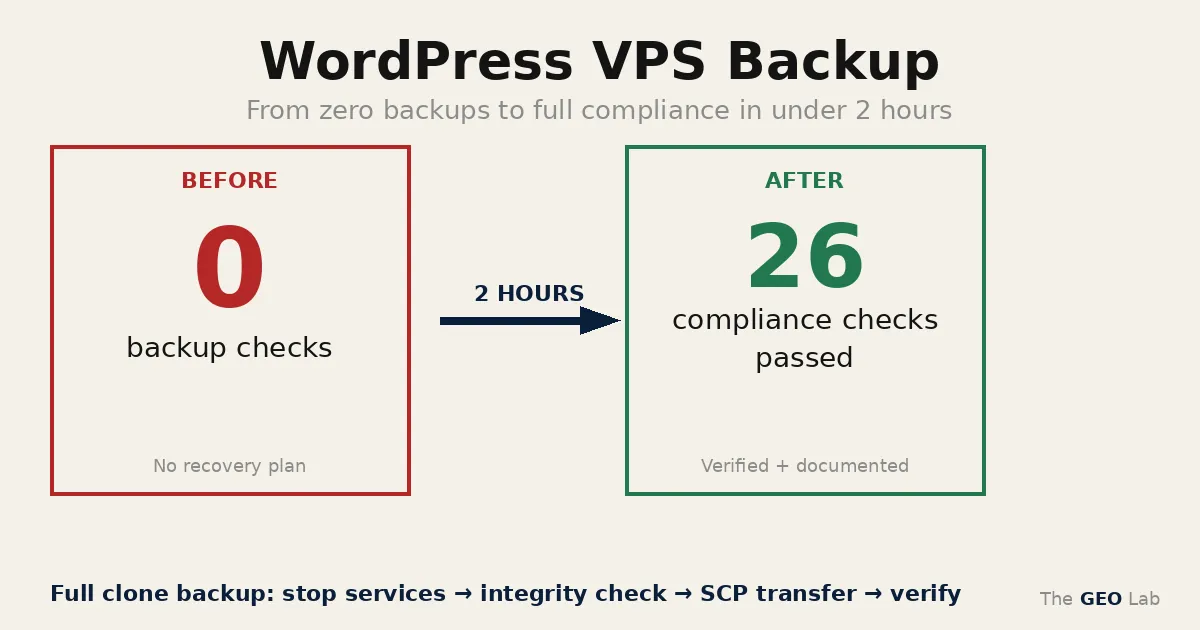
thegeolab.net was running live on a DigitalOcean VPS with zero backups. One disk failure would have meant total loss: 46 database tables, 15 hand-written mu-plugins, 479 theme files, every nginx config, every SSL cert, and a month of intensive GEO research that existed nowhere else. In approximately two hours, I built a three-layer backup system with automated nightly runs, Google Drive off-site sync via headless OAuth, AES-256-CBC encryption, integrity verification, and 10-mode restore script. Four Google Drive approaches failed before the fifth worked. Ten components were missing from v1. Here’s the full case study.
The Wake-Up Call
Someone asked, mid-session: “do we have a full working backup (including databases)?”
I knew the answer before I checked. No. Nothing. Not a database dump, not a file copy, not a cron entry that had ever run and produced something verifiable. The entire site existed on one disk, on one VPS, with no copy anywhere else.
This is embarrassing to publish. It’s also the kind of thing that’s extremely common and almost never talked about because the people it happens to are too embarrassed to talk about it, and the people it hasn’t happened to yet assume it won’t. I’m publishing it because I built the audit system to surface exactly this kind of silent risk, and this is what it found when someone finally asked the right question.
The site had been live long enough that losing it would have hurt. Twenty years of SEO methodology, a custom audit framework, 15 hand-written mu-plugins, a failure registry with 16 categories, none of it existed anywhere except on that one disk.
The session that followed was approximately two hours of work. Here’s the full account.
What Was Actually at Risk
When people say “backups,” they usually mean the database and wp-content. That’s about 40% of what you’d actually need to restore a production WordPress VPS from scratch.
Here’s the full inventory of what existed only on that one disk:
- Database: 46 tables with
geo_prefix (custom prefix, notwp_). Every post, page, postmeta row: including all RankMath SEO data, every JSON-LD schema block, every option value tuned over months. - mu-plugins: 15 custom PHP files. TOC generator, schema injectors, geo-defaults, contact form handler, ebook styles. Hand-written. Not in any plugin repository. Not recoverable from anywhere.
- Theme:
geolab-themewith 479 files including the knowledge base, audit tools, session memory, and the entire failure registry in YAML. - Uploads: 282 files: brand assets, hero images, WebP conversions. Replaceable in theory; in practice, hours of work.
- System configs: nginx server blocks, PHP-FPM pool config tuned for the specific workload, SSL certificates, MySQL tuning parameters, UFW firewall rules, SSH hardening config, fail2ban jails with custom ban rules, a crontab with 38 entries.
The system config layer is the one people consistently underestimate. A database restore gets your content back. It does not get back the nginx config that makes WordPress work without exposing PHP-FPM directly. It does not get back the PHP-FPM pool config tuned for the server’s RAM. It does not get back the fail2ban rules that are actively blocking login attempts. Recreating that layer from scratch takes hours, and that’s assuming you remember all of it.
Going deeper? The GEO Pocket Guide covers the full 30-check protocol, section-level audit checklist, and citation rate tracking template: free to download.
Four Google Drive Failures
Off-site backup was the priority. Local VPS backup is useful; local VPS backup plus an off-site copy is the actual minimum viable setup. Google Drive was the obvious choice: 15 GB of available quota, already authenticated on the Google Cloud Console from earlier work.
It took four attempts before anything worked.
-
FAILED
Attempt 1: Service account authentication. rclone configured with a Google service account JSON key. Every upload failed with
storageQuotaExceeded. Root cause: Google service accounts have zero storage quota on regular Google Drive. They can only write to Google Workspace Shared Drives, which require a paid Workspace subscription, or use domain-wide OAuth delegation. The error message implies storage is the problem. Storage isn’t the problem. The account type is the problem. -
FAILED
Attempt 2: Shared folder with service account as editor. Created a backup folder in personal Google Drive. Shared it with the service account email as Editor. Added
root_folder_idto the rclone config. SamestorageQuotaExceedederror. Sharing a folder grants access: it does not grant storage quota. The service account has nowhere to put the bytes regardless of folder permissions. -
FAILED
Attempt 3: Download rclone to local machine for OAuth. Personal Google account OAuth was the actual fix, but OAuth requires a browser, and the VPS is headless. Plan: run
rclone authorize "drive"on the local PC (WSL/Ubuntu). Problem:downloads.rclone.orgreturned HTTP 404 or empty files. Downloads were failing at the network level. rclone never installed. -
FAILED
Attempt 4: SSH to VPS from local machine. Standard SSH to
thegeolab.net:22was refused. Port 22 is blocked from the local network, which was configured as a security measure and then forgotten about. The VPS was unreachable via normal SSH from the local machine. -
WORKED
Attempt 5: Headless OAuth via Tailscale + rclone binary copy. Connected to the VPS via Tailscale (mesh VPN, internal IP
100.x.x.x). Copied the rclone binary directly from the VPS to the local machine via SCP. Ranrclone authorize "drive"locally, opened the auth URL in the browser, authorized with personal Google account. Captured the OAuth token, access token, refresh token, expiry, and wrote it into the rclone config on the VPS. First upload: successful. See next section for the exact procedure.
The pattern here is worth naming: each failure was caused by something that sounded like it should work, failed with a misleading error message, and required a different mental model to diagnose correctly. The service account error said “storage quota” when the real issue was account type. The folder sharing appeared to fix the quota problem but didn’t. These failures are poorly documented precisely because most people give up at attempt 2 and use a different solution entirely.
The Fix: Headless OAuth Flow
The core insight: to run OAuth on a headless server, you don’t need a browser on the server. You need rclone to generate an auth URL, a browser on any machine to complete the consent flow, and then the token pasted back. The challenge was just getting rclone onto a machine with a browser, given that the download was failing.
The solution: copy rclone from the VPS to the local machine instead of downloading it.
# Step 1: on local machine (WSL) — connect via Tailscale VPN
scp [email protected]:/usr/bin/rclone /tmp/rclone
chmod +x /tmp/rclone

# Step 2: run the OAuth flow on local machine
/tmp/rclone authorize "drive"
# rclone starts a local server and prints an auth URL
# On WSL, open it in Windows browser:
powershell.exe -Command "Start-Process 'http://127.0.0.1:53682/auth?state=...'"
# Sign in with personal Google account → authorize rclone
# Token JSON is printed to stdout — copy it

# Step 3: write rclone config on VPS
cat > ~/.config/rclone/rclone.conf << 'EOF'
[gdrive]
type = drive
scope = drive
token = {"access_token":"ya29...","token_type":"Bearer","refresh_token":"1//0x...","expiry":"2026-03-13T16:42:21Z"}
root_folder_id = YOUR_FOLDER_ID
EOF

# Step 4: test
echo "test" > /tmp/test.txt
rclone copy /tmp/test.txt gdrive:
rclone ls gdrive:
The refresh token matters. The refresh_token field is what makes this durable. Access tokens expire after an hour. The refresh token lets rclone obtain new access tokens automatically, indefinitely, without you re-running the OAuth flow. You do this once. The nightly cron handles everything after that.
One gotcha worth documenting: rclone about gdrive: showed 15 GB of available storage even during the service account failures. That was misleading: it was showing the domain’s quota information, not the service account’s. The service account had no quota, but the command reported numbers anyway. Don’t use rclone about as a diagnostic for whether uploads will work.
The Backup Architecture
The architecture is deliberately redundant. Local backup fails if the VPS disk fails, that’s the exact scenario you’re protecting against. Google Drive covers that case. PC Desktop covers the case where Google’s service has an issue, or where you need to restore from a specific point-in-time snapshot that the nightly rotation has already overwritten.
Three copies, two locations, one automated. The manual snapshot is the insurance policy for the insurance policy.
Compliance Audit: 10 Gaps in v1
After the initial backup script was running, I ran a compliance audit against a standard VPS backup checklist. The first version of the script, call it v1, was missing ten components.
The 10-gap finding from the initial compliance check is consistent with the failure patterns documented in the GEO compliance audit system: where infrastructure gaps compound at the crawlability layer long before they appear as citation drops.
None of them were obvious omissions. They were all the things you don’t think about because they’re not called “WordPress backup” anywhere.
The theme omission is the one that requires explanation, because it’s clearly absurd: the theme is 479 files that took months to build, and it wasn’t being backed up. The reason: the initial script was built quickly, covered database and wp-content uploads and plugins and mu-plugins as the obvious layers, and the theme directory was never explicitly added. It lived in wp-content too, but the rsync paths were specific subdirectories.
The system configs are the more structurally interesting gap. A PHP-FPM pool config contains memory limits, process counts, socket paths, and security settings tuned for a specific server. If you lose it and your new server has different defaults, WordPress will behave differently in ways that are annoying to debug. Your nginx config contains the exact fastcgi_pass path that connects nginx to PHP-FPM. Your firewall rules contain the specific ports you’ve allowed, the IPs you’ve blocked, and the rate limits you’ve set. None of this is documented anywhere except in the config files themselves.
All ten gaps were fixed in v2, along with encryption and a server manifest.
The Restore Script
Backups without a restore script are an archive with unknown recoverability. The question isn’t whether your files are somewhere, it’s whether you can get the site back, reliably, under pressure, at 2am, with partial options when you don’t need a full restore.
I built restore.sh before considering the backup complete. Ten modes:
| Command | What it does |
|---|---|
./restore.sh dryrun | Preview all operations — nothing written, no changes made |
./restore.sh full | Full restore with 10-second abort window before destructive ops begin |
./restore.sh partial db | Database only — leaves all files in place |
./restore.sh partial config | nginx + SSL + wp-config + crontab |
./restore.sh partial plugins | Plugins directory only |
./restore.sh partial mu-plugins | mu-plugins only — the 15 custom files |
./restore.sh partial uploads | Uploads only, preserves everything else |
./restore.sh partial theme | Theme only |
./restore.sh partial system | PHP/MySQL/SSH/firewall configs |
./restore.sh from-drive | Downloads latest from Google Drive before restoring |
./restore.sh decrypt FILE | Decrypts a weekly AES-256 archive |
The safety mechanism that matters most: before any destructive restore, the script automatically creates a pre-restore snapshot: current database dump, current uploads copy, current configs. So the worst case from a bad restore isn’t “I’ve lost the site.” It’s “I’ve lost the site but I have the state it was in 30 seconds before I ran the restore.”
After any restore, the script flushes nginx fastcgi cache (rm -rf /var/cache/nginx/fastcgi/*), restarts PHP-FPM, and flushes the WordPress object cache. This matters because I discovered during the same session that wp cache flush does not clear the nginx fastcgi cache: they’re separate systems. Without the explicit nginx flush, you restore the database and then see stale cached content for up to whatever your fastcgi cache TTL is.
Corruption Check Results
Having files is not the same as having good files. I ran a full integrity check across every component of the initial full backup before trusting any of it.
| Component | Test method | Result |
|---|---|---|
| DB dump (geolabdb_20260313.sql.gz) | gzip -t + start/end markers | ✓ “Dump completed” marker present |
| All .tar.gz archives (7 files) | gzip -t on each | ✓ All pass |
| mu-plugins (15 PHP files) | php -l syntax check on each | ✓ All 15 pass |
| wp-config.php | php -l + credential count | ✓ 4 DB credentials found |
| PNG images (spot check) | File magic bytes verification | ✓ All valid PNG headers |
| Zero-size files | find -empty | 1 found: Wordfence CSS variable file (expected — empty in live too) |
| Live vs backup match | Table count, file count comparison | ✓ 46/46 tables, 282/282 uploads |
The one finding, a zero-size Wordfence CSS file, was verified against the live site. The file is empty in production too. It’s a CSS variable placeholder that Wordfence creates but only populates under specific conditions. Not a backup failure.
Checksums generated for the critical components and stored alongside the backup. If the backup file ever changes unexpectedly, the checksum catches it.
3c32d7c376b565248aa0033ece620cac  geolabdb_20260313.sql.gz
bac204d1fb261a2d9f740276f1b700a7  wp-config.php
ce02743eb71cb13ecbb3e24c66e0d540  nginx-config.tar.gz
b41eb336e84d209f8c85728238b716af  letsencrypt.tar.gz
The 26-Item Checklist
If you’re running a WordPress site on a VPS, this is what a complete backup covers. The first 10 items are what most guides describe. Items 11–20 are what most guides omit.
Eight Lessons
1. Service account ≠ storage quota
Google service accounts cannot upload to regular Google Drive. The error says “storage quota exceeded” which implies the account has some quota that’s been used up. It has none. Use personal account OAuth with a refresh token for headless VPS access. The Google Drive API auth documentation documents this distinction, and the rclone Google Drive backend docs describe the OAuth flow, but most rclone guides don’t emphasize it.
The backup architecture maps onto Layer 1 of the GEO Stack: server infrastructure reliability, cache configuration, and uptime are prerequisites for consistent AI crawler access, not optional extras once content is published.
2. Headless OAuth is one-time setup
The rclone binary-copy approach, SCP from VPS to local machine, run OAuth locally, paste token back, sounds awkward. It takes about five minutes. The refresh token it generates lasts indefinitely. You do it once.
3. wp cache flush doesn’t clear nginx fastcgi cache
Two separate systems. WordPress object cache flush via WP-CLI has no effect on nginx’s fastcgi cache. After a database restore, run rm -rf /var/cache/nginx/fastcgi/* and reload nginx, or you’ll be debugging stale content against a fresh database.
4. Backups without restore scripts are archives
A file archive is not a backup until you’ve verified you can get the site back from it. Build the restore script. Run dryrun against it. Partial restore modes matter because most real-world recovery scenarios are partial: you need the database back after a bad plugin update, not a full restore.
5. The system config layer is always forgotten
PHP-FPM tuning, nginx server blocks, fail2ban jails, firewall rules, SSH hardening, custom systemd services, none of these are in wp-content. None of them are in the database. They live in /etc and take hours to recreate from scratch. Back them up.
6. Encrypt and store the encryption key separately
The AES-256 key lives at /root/.backup_encrypt_key (permissions 600). If the VPS disk fails and takes the key with it, the encrypted weekly archives are unrecoverable. The key must exist somewhere the disk failure doesn’t affect: a password manager, a local machine, a printed piece of paper in a drawer. The encrypted backup is only as recoverable as the key.
7. Verify before you need it
I ran gzip integrity tests, PHP syntax validation on all 15 mu-plugin files, image header verification, zero-size file scanning, and live-vs-backup file count matching. I found one anomaly (the Wordfence CSS file) that turned out to be a non-issue. Finding anomalies during scheduled verification is infinitely better than finding them during a crisis restore at 2am when the site is down.
8. The tar glob expansion trap
Using shell globs inside tar arguments with set -euo pipefail — tar czf ... page-geo-*.php — fails when bash doesn’t expand the glob before passing it to tar. Use find first, then pass results to tar:
TEMPLATES=$(find "$THEME_DIR" -maxdepth 1 -name "page-geo-*.php")
tar czf "$BACKUP_DIR/custom-templates.tar.gz" -C "$THEME_DIR" $(basename -a $TEMPLATES)A backup system has three components: what you capture, where you store it, and whether you can get it back. Most guides cover the first two. The restore script is what makes the first two mean anything. Build partial restore modes. Build a pre-restore safety snapshot. Run dryrun before you’re under pressure to use the real thing. The 26-item checklist above is the difference between “I have backups” and “I have tested backups.”
Frequently Asked Questions
Why did Google show 15 GB of available quota when the service account couldn’t write anything?
rclone about gdrive: queries the Drive API for storage information, which returns the domain’s or user’s quota, not the service account’s write capability. The service account has zero write quota regardless of what the storage query returns. It’s a misleading diagnostic. Test uploads directly with a small file rather than checking storage info.
Is rclone with a personal Google account safe for automated VPS backups?
The rclone OAuth token persists indefinitely. The refresh token in the rclone config allows rclone to request new access tokens as needed, without user interaction. The config file should have restricted permissions (chmod 600 ~/.config/rclone/rclone.conf). The only operational concern is if you revoke the OAuth authorization in your Google account settings: that would invalidate the refresh token and break the automated sync.
How often should the encryption key be rotated?
There’s no universal answer, but the critical point is that the current key must be accessible wherever you’d restore from. If you rotate the key, you need to re-encrypt any weekly archives you want to keep recoverable, or document which key was used for which archive period. The more important practice is ensuring the key is stored in at least two places that are independent of the VPS.
Does this backup approach work for managed WordPress hosting?
Mostly no, managed hosts (WP Engine, Kinsta, etc.) don’t give you root access or crontab control. They typically provide their own backup systems. This approach is specifically for self-managed VPS deployments where you’re responsible for the full stack.